
Created with a ChatGPT prompt
Images can be a great visual tool especially in ESL, but the process in making them technologically effective can be overwhelming. Images with Impact will be a 3-part series of posts by John Allan in order to give you researched information and the opportunity to reflect at each step.
Instructors and Images
Many instructors are expected to create their own presentations, worksheets, or online learning materials called learning objects (LOs) to enhance their classroom offerings. This situation is tricky since most LOs in the modern classroom include multimedia objects. For now, let’s focus on images. Image handling is a very common problem for instructors. This problem is especially onerous for instructors who may not have access to image editors, image repositories, or media design support.
Instructors are presented with several potential problems when adding images to their LOs. These include image optimization, file types, copyright, sourcing legal images, placement, and accessibility.
In all of the examples below, it is assumed that the instructor is using Microsoft Word.
Optimizing (Editing) Images
Optimizing images refers to creating a balance between the image’s appearance, dimensions, and storage size. It is good practice to resize downloaded images from the Internet or from a digital camera to ensure that it fits appropriately into the LO. The resource Web Resizer is a useful and efficient image optimization resource. Its user-friendly interface allows instructors a fast means of cropping, resizing, changing the quality, rotating, and adding a border to an image. The primary feature of Webresizer is the comparison between the original and the optimized image as pictured in the image below.
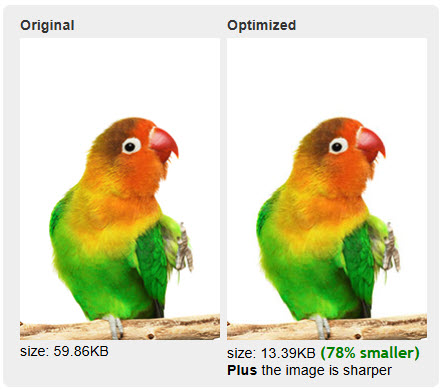
Screen grab from Web Resizer
Figure 1: screen grab from Webresizer
Instructors can quickly compare how the image appears in relation to the original in terms of appearance, size, and storage.
Image Types
When describing images, there are 2 key types: bitmap and vector. Bitmap images are characterized by their small square building blocks to construct images. Bitmap images best represent real life as in photographs. Vector images are characterized by points, lines, angles, curves, and angles, as in line art and logos. Vector art is very efficient in terms of memory allocation, but is not designed to produce life-like images.
Wikipedia lists more than 89 different image file formats. 7 common ones are GIF, Jpeg, PSD, PNG, BMP, WMF, and Adobe EPS. Each of these file types has a different purpose. Even though it is possible to convert between most of these formats using online resources such as Convert My Image, it is better to use the suitable file format for the purpose of the image.
- Essentially GIFs are mainly cartoon styled images. These can also be short animations. These were the most common type of image on the early visual Internet.
- JPEGS are the most common file type, as they are used for representing photographs.
- BMP (Bit maps) are an older format for images that are bulky in terms of memory.
- PSD is the Photoshop file format. After creating an image in PSD format, one must export the image into a web friendly format for use with LOs.
- Adobe EPS is a file format often used to save vector images produced with Adobe Illustrator. These also must be exported to a web friendly format for use in LOs.
- WMF (Windows Metafile) is a file format designed by and for Windows in the 90s. These images can be vector or bitmapped.
- PNG is a vector graphic that is commonly used on web pages, as it also supports background transparency.
I hope that these tips help you with images issues while creating your own learning objects. If you have any other tips or issues related to editing images, please post a comment below.
Resources referenced:
Convert My Image http://www.convertmyimage.com
“Image File Formats.” Wikipedia, The Free Encyclopedia. Wikimedia Foundation, Inc. 13 Nov. 2014. Web. 30 Nov. 2014. http://en.wikipedia.org/wiki/Image_file_formats
Web Resizer http://www.webresizer.com/resizer

7 Comments
John,
Yes! I am just getting friendly with images and am starting to have a lot of fun. I used to spend way too much time on the web looking for just the right image that was not copyright protected. Yes, I know about creative commons images, royalty free and all of that. But STILL I never could find the right thing. Well, I’ve been so happy since discovering the free Paint2 program on my Mac. I just open it up, click CREATE NEW, grab the pencil tool and sketch the hat or scarf or apple or cat or whatever I need! Then I export it as a JPG to a folder I’ve created to hold all my homemade images. I use these on my matching worksheets, on my website, everywhere! I was even able to create my own Favicon for my blog this way. Now I can SHARE everything I make with the world without worrying that I’m violating copyright laws.
Kelly:
Yes, creating your own images is the best way to ensure that your materials will have no image copyright issues. I have heard of some instructors manually tracing or using auto-trace features on various software programs to create “original “(loosely used here) for their materials. If you could share and example or two of your original works to the community I think that might be inspiring to some folks.
keep up the good work,
John
Sure, John, I can share an example. If you go to my website http://www.kellymorrissey.com and click FREE RESOURCES – Literacy, you will see some activity packs that I have uploaded to the ESL Literacy Network’s Showcase area. Click on Mo Stays Warm, which will take you to that showcase of mine. Scroll down to the activity pack; the first worksheet is a double-sided matching activity. I made all those images of hat, scarf, snow, go outside on the free Paint2 program by drawing with my finger on my trackpad. No mouse, even! https://esl-literacy.com/sites/default/files/Mo%20Stays%20Warm%20Learning%20Activities.pdf
Kelly: I love grassroots sites that offer so much to others in the field. Instructors who have taken on blogs or resource sites will appreciate how much work these resources require. This is especially true when you create your own images and other media.
Thanks for sharing this practical example of creating your own images. I am guessing that you avoided colour in your images to save on copying costs. Have you tried a resource that has layers? Layers offers you the ability to trace an image (photo) to create a realistic duplication.
You surf to http://apps.pixlr.com/editor/, and then open an image, which is usually a photograph that you wish to use as the model of your drawing. Then you add a layer in the layers panel, and start tracing in this new layer with the various drawing tools. After the tracing is complete and effects and or fill colours and patterns are added, then simply delete the first layer and save your traced layer.
all the best,
John
John,
This is exactly what I’ve been needing….layers! I’ve heard about that feature in software such as Photoshop, but I am not about to buy that. So thanks for the link to an alternative. I’ll check it out. K
Kelly,
I think you’ll find that creation of line-art with layers will make your drawing experince more efficient. I just checked out the Pixlr app options for the IPad. I could not see the same functionality on it. You will have to use Pixlr on a workstation.
John